How to make a seamless
Instagram carousel.
A seamless carousel is one picture spread across several slides, so each swipe carries on where the last slide ended. Here’s how to make one in Seamless, in Canva or in Photoshop.
A seamless carousel is one picture spread across several slides, so each swipe carries on where the last slide ended. Here’s how to make one in Seamless, in Canva or in Photoshop.
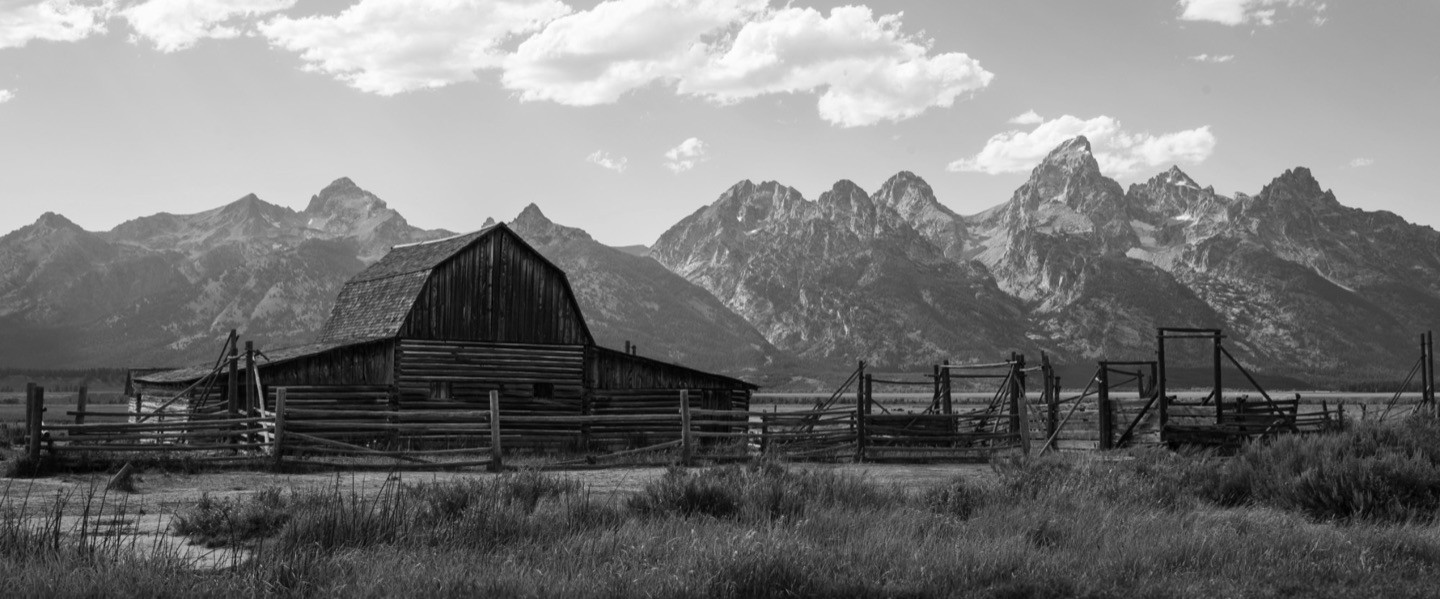
One photo across three portrait slides, with a headline that starts on the first.
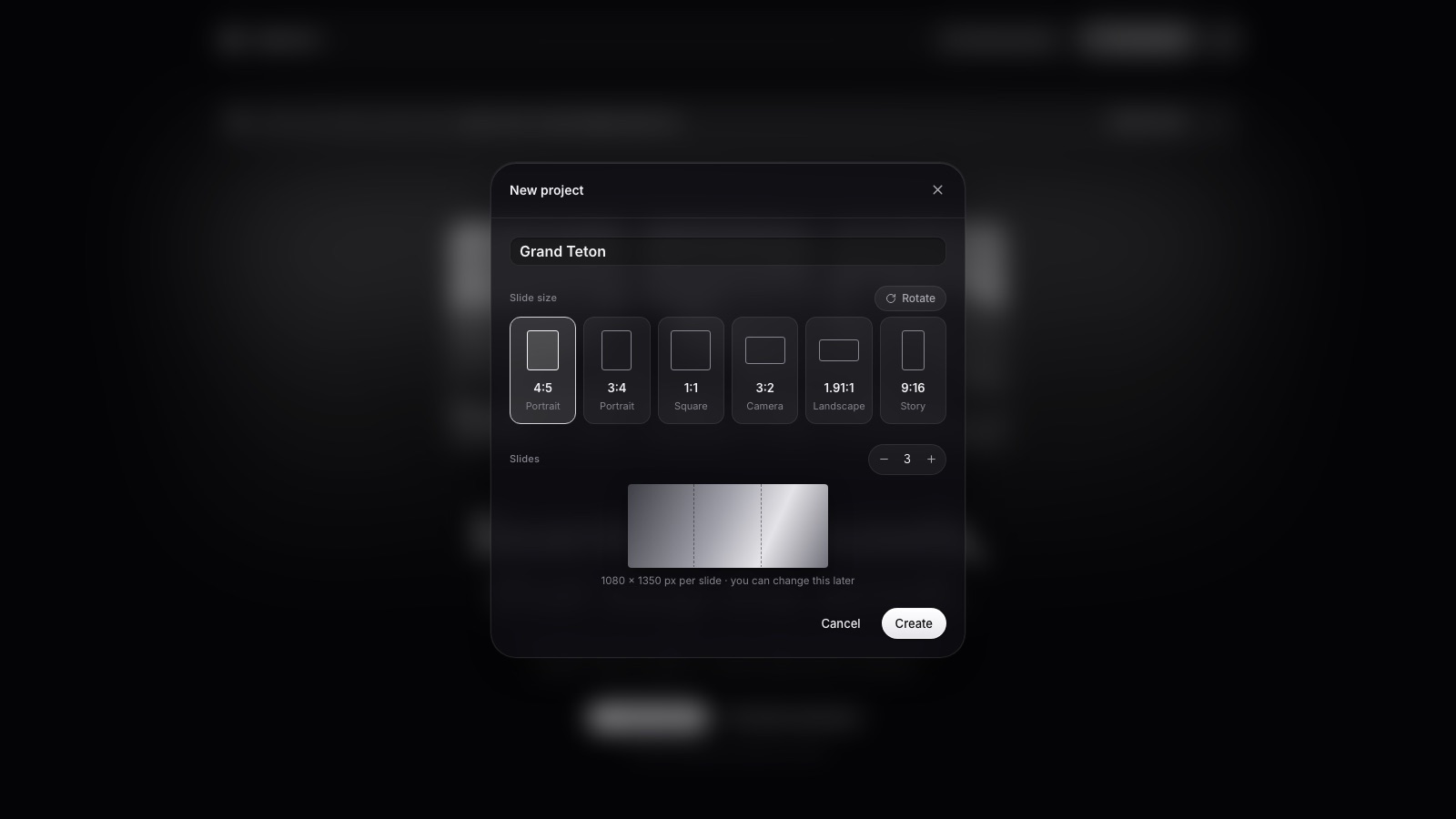
Pick the slide shape (portrait 4:5 is the usual choice) and how many slides. You can change both later without starting over.
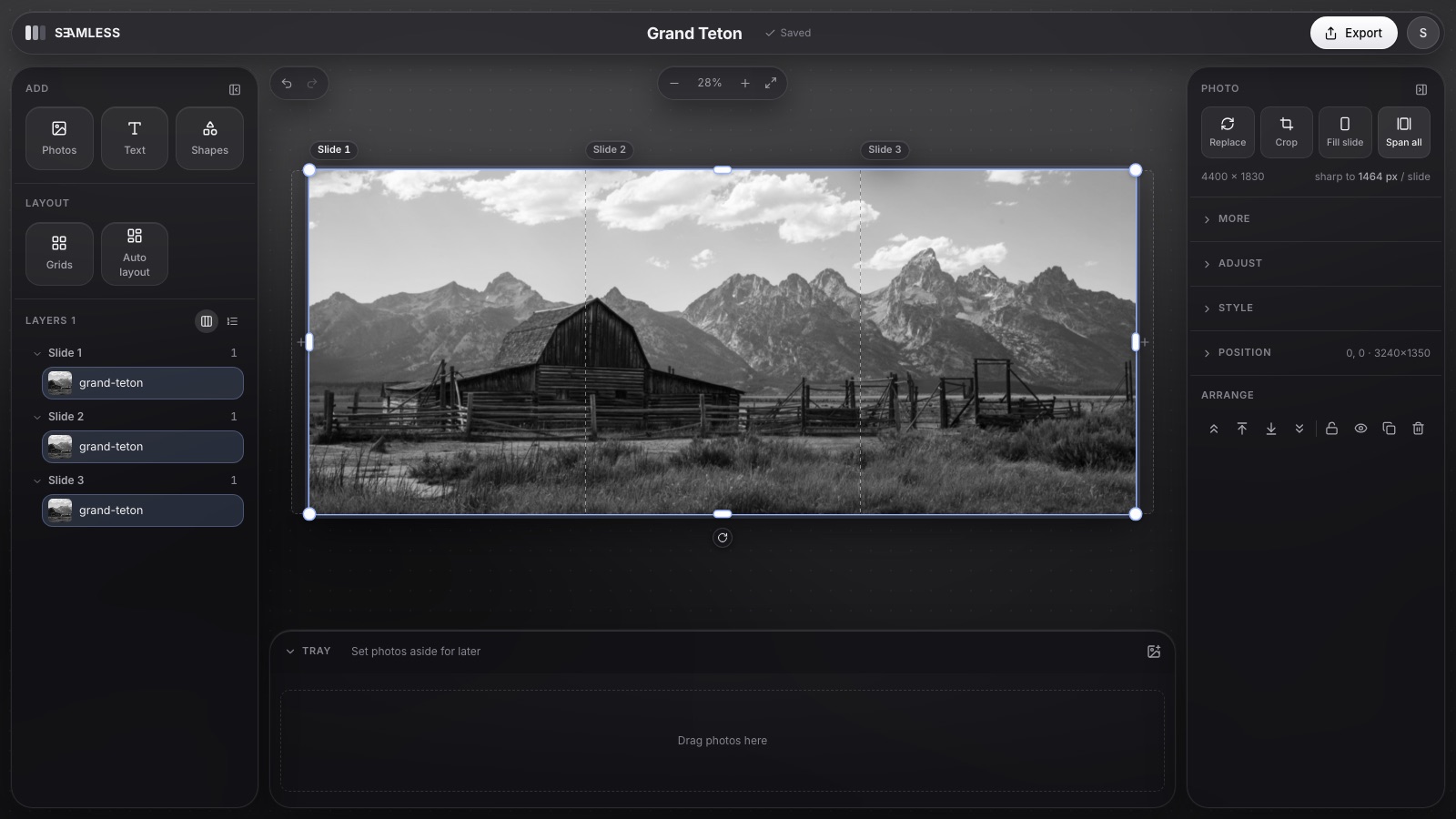
A photo dragged over the line between two slides carries on into the next one, and Span all runs it across every slide. Edges snap to the seams, so nothing is lost or doubled.
Choose from 200+ Google Fonts. A headline can start on one slide and finish on the next, which gives people a reason to swipe.
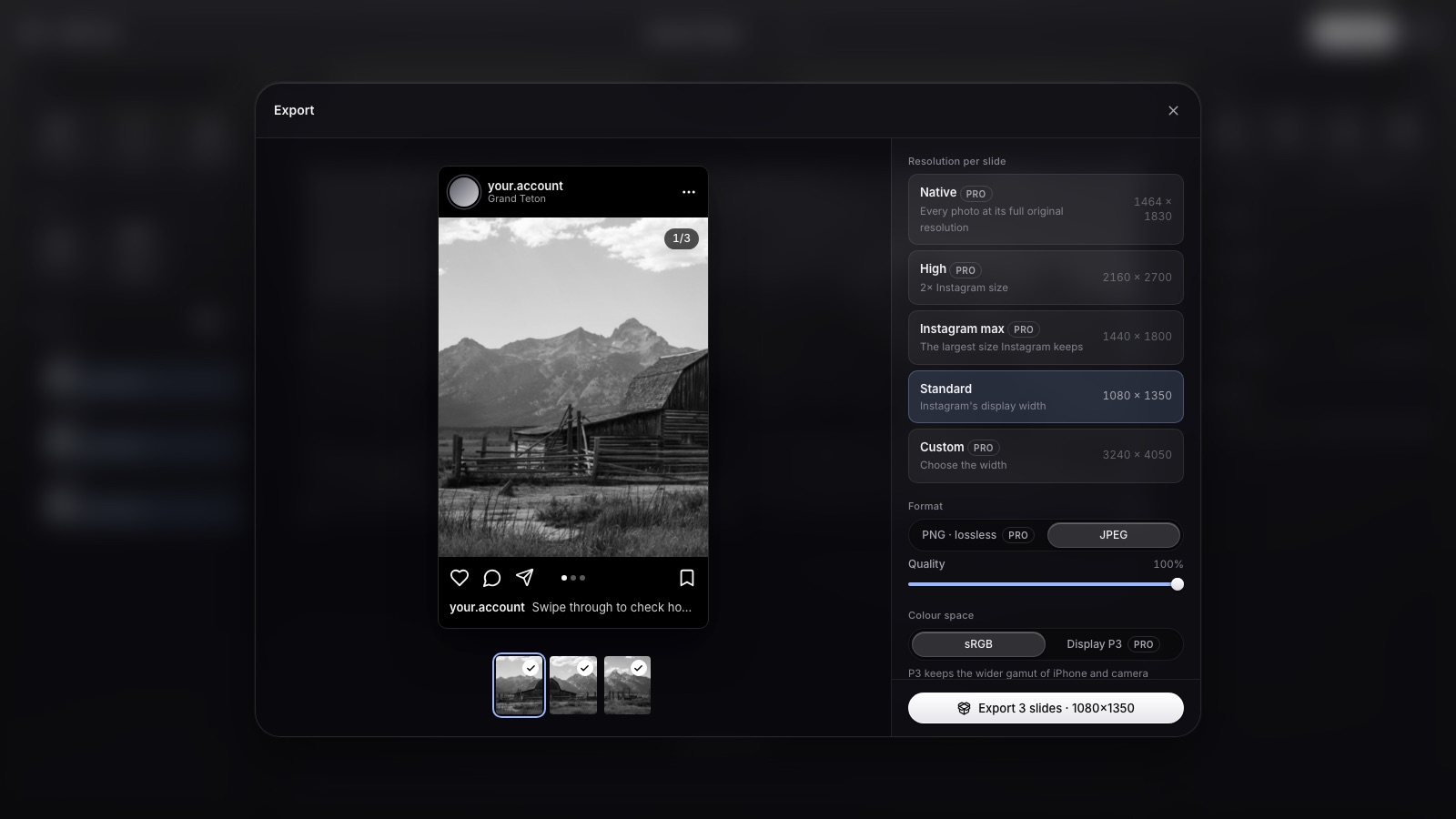
Swipe through it exactly as your followers will. Export saves every slide, numbered, at the size Instagram shows.
In Instagram, select the slides from 1 to the last. If the previews show as squares, tap the crop button to switch back to their own shape.
It’s the only one people see in the feed. Give them a reason to swipe.
A horizon, a road or a line of text that continues tells people there’s more.
A face split across two slides is never seen whole.
Portrait 4:5 or 3:4 slides fill more of the screen than square ones.
Yes. Seamless is free to start, and the panorama splitter needs no account at all.
The canvas wasn’t an exact multiple of the slide width, so a cut fell between pixels. Seamless always cuts on whole pixels.
Yes. Seamless runs in your phone’s browser and shares the slides straight to Instagram.
Three to five works for most panoramas. Instagram allows up to 20.